

















THE EVOLVED EDIT
How to Connect an iPad Keyboard Case (and Fix Pairing Problems)
Connect a Bluetooth iPad keyboard case, identify other connection types, and fix common pairing, typing, trackpad and layout problems.
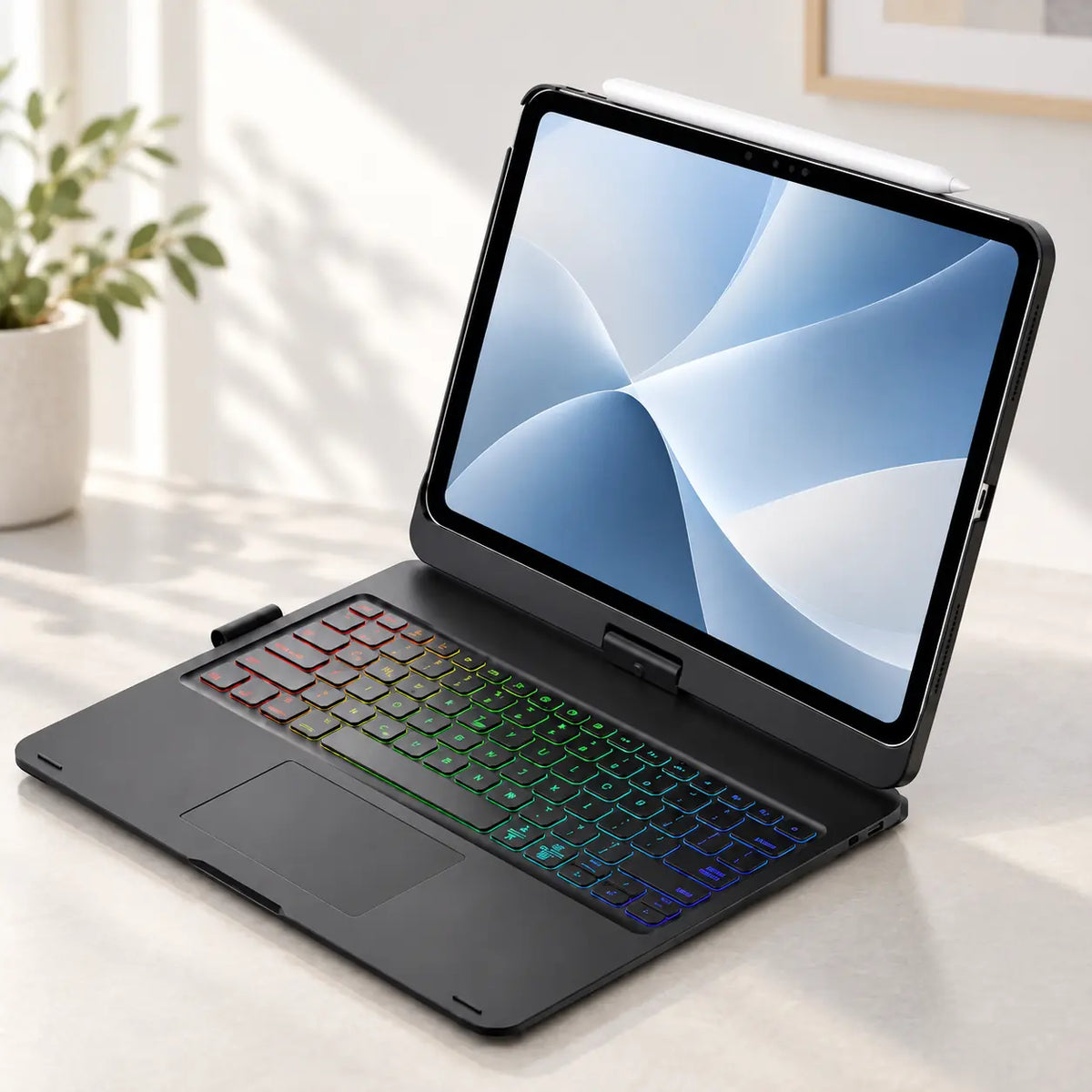
The short answer
To connect a Bluetooth iPad keyboard case, charge and switch on the keyboard, put it in pairing mode, then open Settings > Bluetooth on the iPad and select the keyboard when it appears. Test a few keys and the trackpad before adjusting the case angle.
Not every keyboard case connects this way. Apple Smart Connector keyboards attach through three physical contacts and normally do not need Bluetooth pairing or a separate keyboard battery. Check the product instructions before troubleshooting.
First, identify how the keyboard connects
“iPad keyboard case” describes several different designs. Knowing which one you have prevents you from looking for a Bluetooth menu when the keyboard uses a physical connector—or waiting for a connector-based keyboard to charge when it has no separate battery.
| Connection | How it works | What to check |
|---|---|---|
| Bluetooth | The keyboard pairs wirelessly in iPad Settings. | Keyboard charge, power switch, pairing mode and Bluetooth status. |
| Smart Connector | Physical contacts carry data and power between compatible Apple keyboards and iPad. | Exact model compatibility, clean contacts and correct seating. |
| USB | A wired keyboard connects through a compatible cable or adapter. | Connector type, adapter support and whether the port carries data rather than power only. |
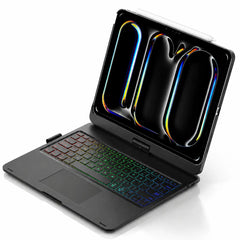
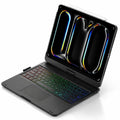
The current TypeMate iPad keyboard case listing specifies Bluetooth 5.0 connectivity and a separately rechargeable USB-C keyboard. Its USB-C port charges the keyboard; it does not turn the case into a wired keyboard connection.
How to connect a Bluetooth iPad keyboard case
- Confirm the case fits your exact iPad. The tablet should sit securely without covering the camera, buttons, speakers or charging port.
- Charge the keyboard. A low keyboard battery can prevent pairing or cause intermittent input. Use the cable and power requirements supplied with the product.
- Switch the keyboard on. Look for its power indicator. The location and light behavior vary by model.
- Put the keyboard in pairing mode. Use the pairing button or key combination in the product instructions. Do not guess: backlight, Bluetooth and operating-system keys can look similar.
- Open Settings > Bluetooth on the iPad. Turn Bluetooth on and wait for the keyboard name to appear under nearby devices.
- Tap the keyboard name. If iPadOS displays a code, follow the on-screen instructions and confirm it with the keyboard.
- Test the connection. Open Notes, type a short sentence and try the trackpad. Then close and reopen the case to confirm it reconnects as expected.
Apple’s iPad guide follows the same core process for Bluetooth accessories: place the accessory in discovery mode, open Settings > Bluetooth, then select it from the device list. Apple: connect iPad to Bluetooth accessories.
If the keyboard does not appear in Bluetooth
Work through these checks in order. Changing several things at once makes it harder to identify the cause.
- Charge it for a while. A status light can sometimes turn on even when there is not enough battery for stable pairing.
- Move the keyboard close to the iPad. Keep other Bluetooth devices and unnecessary wireless accessories out of the setup while testing.
- Restart pairing mode. Switch the keyboard off, wait a few seconds, switch it on and activate the documented pairing control again.
- Check another device is not taking the connection. A keyboard may reconnect to a previously paired tablet or phone instead of remaining discoverable.
- Toggle Bluetooth on the iPad. Turn Bluetooth off in Settings, wait briefly and turn it on again.
- Restart the iPad. Reopen Settings > Bluetooth after the restart and repeat the pairing process.
If the keyboard still never appears, check its manual for a reset procedure and confirm that the selected case version supports your iPad model. Contact the seller before using an undocumented key combination or opening the keyboard housing.
If it says “Connected” but will not type
A saved Bluetooth entry does not always mean the current connection is healthy. Start with a simple text field in Notes so the app itself is unlikely to be the problem.
- Wake the keyboard. Press a normal key after the keyboard has been idle; some models enter a power-saving state.
- Check the battery again. Charge the keyboard before deeper troubleshooting.
- Reconnect it. In Settings > Bluetooth, tap the information button beside the keyboard, choose Forget This Device, then pair it again.
- Restart both devices. Turn the keyboard off, restart the iPad, then repeat pairing.
- Update iPadOS. Install an available update from Settings > General > Software Update after backing up important data.
- Test without unrelated accessories. Temporarily disconnect hubs, adapters and other keyboards to isolate the input device.
For Apple keyboards that use the Smart Connector, the troubleshooting path is different. Apple recommends confirming compatibility, updating iPadOS, cleaning the Smart Connector with a soft lint-free cloth, removing another case that may block the connection and restarting the iPad. Apple: troubleshoot Magic Keyboard and Smart Keyboard connections.
When the keyboard works but the trackpad or keys feel wrong
Adjust trackpad behavior
Open Settings > General > Trackpad, or Trackpad & Mouse when that is the menu shown. iPadOS can adjust tracking speed, Natural Scrolling, Tap to Click and the two-finger secondary click. Apple: change trackpad settings on iPad.
Check the keyboard layout
If a symbol appears on the wrong key, the physical keyboard layout and the layout selected in iPadOS may not match. Review Settings > General > Keyboard and choose the appropriate language and hardware layout. Apple’s guide explains how to add a language and assign an alternative layout. Apple: add or change keyboards on iPad.
Separate a key problem from an app problem
Test the same key in Notes and another app. If it fails everywhere after reconnecting, the keyboard may need a product-specific reset or service. If it fails only in one app, review that app’s shortcuts and text-input settings.
Frequently asked questions
Why is my iPad keyboard case not showing in Bluetooth?
The keyboard may be off, low on battery, outside pairing mode or already connected to another device. Charge it, restart pairing mode according to its instructions and check Settings > Bluetooth again.
Do all iPad keyboard cases use Bluetooth?
No. Many third-party cases use Bluetooth, while compatible Apple keyboards can use the Smart Connector. Some external keyboards connect by cable. Check the exact product specification.
Does an iPad keyboard case charge from the iPad?
It depends on the design. A Smart Connector keyboard can receive power through the connector. A Bluetooth keyboard case often has its own rechargeable battery and charging port. Follow the product’s specifications rather than assuming the iPad powers it.
Why is the trackpad connected but not clicking correctly?
First test it in more than one app. Then open Settings > General > Trackpad and review tracking speed, Tap to Click and secondary-click settings. Re-pair a Bluetooth case if the pointer or clicks remain intermittent.